Building OCR pipelines with Google AI Studio
Recently I wanted to catalogue all the books I own in my home. It turns out, this isn’t really a solved problem. There’s an abundance of ISBN scanners, but no tool that simply takes a photo and tags the books in it.
Traditionally building such a system contains two steps:
- Creating a segmentation model to recognise individual book titles and spines
- Use the title / spine and OCR to get a title
Once these steps are done one can build a search, e.g using the Google Books API to match titles against ISBN.
Segmenting books correctly using e.g YOLOv8 is possible, there’s even freely annotated data for this. Using the resulting segmentation however to actually perform OCR is a real pain. When I tried using example crops with Tesseract OCR, I was quickly dissapointed.
Since making a combined pipeline has a lot of potential for failure, I thought I’d pivot to another approach entirely.
This blog post will present findings on building a reliable OCR pipeline in minutes.
We’ll start with the example that underlies this blog post, one of my bookshelves:
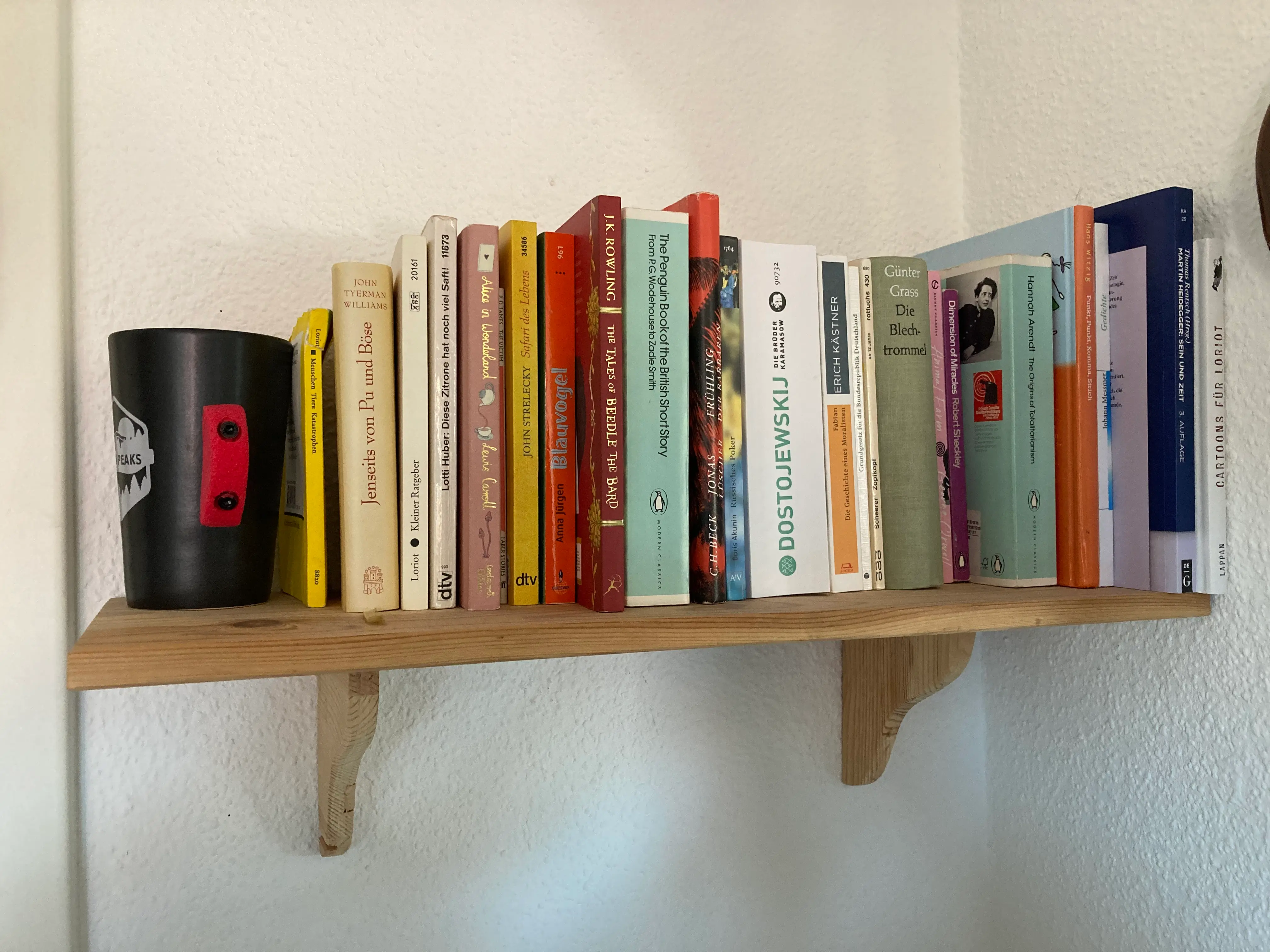
We want to build an OCR pipeline to give us the title, language and authors of every book in this bookshelf. To do so, we’ll need three things:
- A Google Account
- Access to Google AI Studio
- A prompt to ask for our OCR pipeline
- A typed output schema
Assuming you have set up a Google Account, we’ll get right ahead by opening up Google AI Studio.
Under the “Run Settings” tab, we will use for this tutorial:
- gemini-flash-latest
- temperature of 1
- thinking mode disabled
- no Code execution, Function calling, Grounding with Search or URL context
We attach the example bookshelf image to the chat and enter the following prompt:
Please extract the titles of books found in this image. Specify the language in three letter code MARC21 format. Additionally list all the authors found on the image for every book
Next, we want to set up the structured outputs tools. To do so, enable the “Structured Outputs” toogle, edit, and add the following schema:
{
  "type": "object",
  "properties": {
    "books": {
      "type": "array",
      "items": {
        "type": "object",
        "properties": {
          "title": {
            "type": "string"
          },
          "language": {
            "type": "string"
          },
          "authors": {
            "type": "array",
            "items": {
              "type": "string"
            }
          }
        },
        "propertyOrdering": [
          "title",
          "language",
          "authors"
        ],
        "required": [
          "title",
          "language"
        ]
      }
    }
  },
  "propertyOrdering": [
    "books"
  ],
  "required": [
    "books"
  ]
}
Once you copied the schema, click save. Finally, you can run the prompt. The finalised prompt on Google AI Studio is linked here. This gives us back a JSON output following the specified schema, namely a books array with book objects. An excerpt of the result is provided below:
{
  "books": [
    {
      "title": "Lotti Huber: Diese Zitrone hat noch viel Saft!",
      "language": "ger",
      "authors": [
        "Lotti Huber"
      ]
    },
    {
      "title": "Alice im Wunderland",
      "language": "ger",
      "authors": [
        "Lewis Carroll"
      ]
    },
    {
      "title": "THE TALES OF BEEDLE THE BARD",
      "language": "eng",
      "authors": [
        "J.K. Rowling"
      ]
    }
  ]
}
The full results from this run are attached under results.json. I have annotated the result with the following annotation schema:
- \(-1\) for wrong information
- \(0\) for missing information
- \(1\) for correct information
The annotations for this run are also attached under annotations.csv. I’ll break down the results of my annotations for you:
- Of the 22 books, 11 books were fully correct (50%)
- Additional 3 books were found without authors (13%) which can be supplemented via search
- Additional 2 books were found with incorrect authors (9%) which may be corrected via search
- 1 book was found with partially incorrect title that may be corrected via search
- 1 book was found with partially incorrect title and author and language, may be corrected via search
- 2 books were not found
- 2 authors were also flagged as books, easily removed
In total 16 of 22 books (72%) could realistically be found by a book search. This is a great start for any OCR pipeline. In our test example, an unrelated labelled object was present (the mug), as well as some books with very small fonts.
With higher quality pictures the OCR quality should be expected to increase. I have also not experimented with any of the advanced methods, hyperparameters or newer models, which I expect to increase this number further.
Using Google AI studio also lets us create code to run this pipeline via Python. I adjusted the generated code to include the image alongside the prompt:
# pip install google-genai

import os
from google import genai
from google.genai import types

def generate(image_path):
    client = genai.Client(
        api_key=os.environ.get("GEMINI_API_KEY"),
    )

    # 1. Read the image file as bytes
    with open(image_path, "rb") as f:
        image_bytes = f.read()

    model = "gemini-flash-lite-latest"

    contents = [
        types.Content(
            role="user",
            parts=[
                # 2. Add the image part using from_bytes
                types.Part.from_bytes(
                    data=image_bytes,
                    mime_type="image/jpeg" # Change to image/png if using a PNG
                ),
                # 3. Add the text prompt part
                types.Part.from_text(text="""Please extract the titles of books found in this image. Specify the language in three letter code MARC21 format. Additionally list all the authors found on the image for every book"""),
            ],
        ),
    ]

    generate_content_config = types.GenerateContentConfig(
        response_mime_type="application/json",
        response_schema=genai.types.Schema(
            type = genai.types.Type.OBJECT,
            required = ["books"],
            properties = {
                "books": genai.types.Schema(
                    type = genai.types.Type.ARRAY,
                    items = genai.types.Schema(
                        type = genai.types.Type.OBJECT,
                        required = ["title", "language"],
                        properties = {
                            "title": genai.types.Schema(
                                type = genai.types.Type.STRING,
                            ),
                            "language": genai.types.Schema(
                                type = genai.types.Type.STRING,
                            ),
                            "authors": genai.types.Schema(
                                type = genai.types.Type.ARRAY,
                                items = genai.types.Schema(
                                    type = genai.types.Type.STRING,
                                ),
                            ),
                        },
                    ),
                ),
            },
        ),
    )

    for chunk in client.models.generate_content_stream(
        model=model,
        contents=contents,
        config=generate_content_config,
    ):
        print(chunk.text, end="")

if __name__ == "__main__":
    generate("example_bookshelf.png")
To run this, one needs to:
pip install google-genai- Create a Gemini API key
- Load the key into your env via
export GEMINI_API_KEY=yourkey python3 annotate.py
And voila, you have a working OCR pipeline to annotate bookshelves.
Of course, to make this a full product one needs to integrate a book search API etc. This guide is intended to walk you through the steps you could use to make an OCR pipeline for your own use case, quickly.